Get Pricing

questions

Check your Daily Usage using the MyHeating app

How to check my daily usage through the MyHeating app?

In this guide, we will take you on a journey to explore the powerful Daily Usage feature of the app, specifically designed for your Warmup 6iE/4iE thermostat. By following these instructions, you will unlock the ability to monitor and compare energy usage across different rooms in your home, enabling you to make informed decisions and optimize your heating system for maximum efficiency. Usage is calculated based off of heater information supplied during initial programming.

How to check my daily usage through the MyHeating app? Read More »

Set a Manual Override using the MyHeating app

How to perform a manual override using the MyHeating app?

We will guide you through the step-by-step process of accessing the manual override function through the MyHeating app. You’ll learn how to make real-time changes to the temperature, switch between heating modes, and even create temporary overrides to match your specific requirements. With this knowledge, you’ll have the flexibility to adapt your heating system to your lifestyle and preferences effortlessly.

How to perform a manual override using the MyHeating app? Read More »

Change your Password using the MyHeating app

How do I change my password using the MyHeating app?

In this guide, we will provide you with instructions on how to change your password using the MyHeating app. Whether you prefer following a video tutorial or written instructions, we have got you covered. Changing your password is an essential step in maintaining the security of your account, and we will walk you through the process to ensure a smooth and successful password update. By the end of this guide, you will have the knowledge and confidence to navigate the password change feature within the MyHeating app, safeguarding your account against unauthorized access. Let’s dive in and explore the steps together.

How do I change my password using the MyHeating app? Read More »

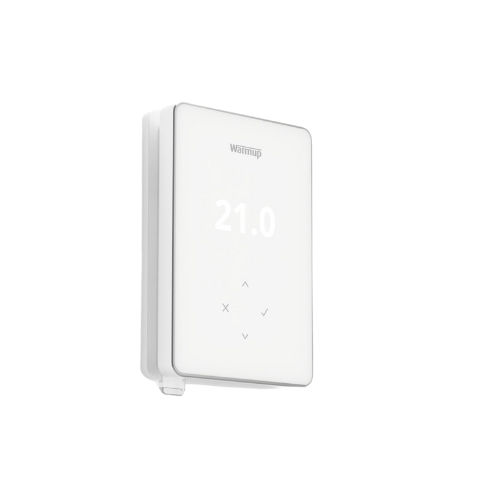
How to Resolve the Terra ER2 Message

How to Resolve the ER2 Message on the Terra Smart WiFi Thermostat?

When the thermostat reads “ER2,” the floor sensor has a short circuit or has a loose connection. Your electrician must secure connections and test the probe using a multimeter set to the lowest possible ohms scale. The resistance reading should be between 7 and 17 ohms.  If a short is found and a backup sensor probe was not installed, you can bypass the error message by setting the thermostat to read the air temperature instead.

How to Resolve the ER2 Message on the Terra Smart WiFi Thermostat? Read More »

Quoting Tools: instant, accurate, flexible

Warmup offers an extensive range of electric floor systems compatible with all floor types, rooms and projects.

ⓘ Enter your first name.
ⓘ Enter your last name.
ⓘ Enter your phone number.
ⓘ Enter your postal code.
ⓘ Please enter a valid email address.
ⓘ Select at least one option.
Select a file or move here
Scroll to Top