
How to Set a Weekly Heating Schedule on Your Warmup Thermostat
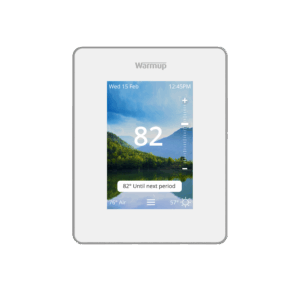
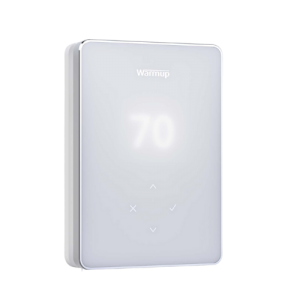
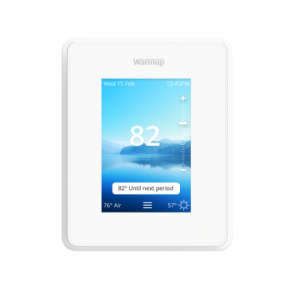
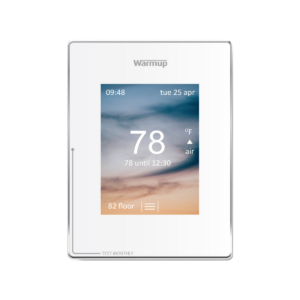
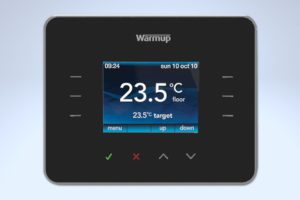
Every Warmup programmable thermostat can run a weekly heating schedule. You choose the days, then set heating periods with a start time and a target temperature, so your floor is warm when you use the room and the heating stays off or turned down when you don’t. Scheduling only the hours you need is one of the easiest ways to reduce heating costs.
How does a weekly heating schedule work?
A weekly schedule, also called a program, tells your thermostat when to heat and to what temperature on each day of the week. Every schedule is built from the same three parts:
- Days. Pick the days the schedule applies to. Most models let you select several days at once, for example Monday to Friday, and give them the same schedule.
- Heating periods. Each day is split into periods. A period has a start time and a target temperature. On some models it also has an end time.
- Confirmation. Save the schedule and make sure the thermostat is in its scheduled (program or automatic) mode. If the thermostat is in a “manual” mode, the schedule will not run.
How do I plan a heating schedule?
Start with when you actually use the room, then work backwards.
- Start heating about 30 minutes before you need it. A heated floor takes time to reach the desired temperature, so begin each period around 30 minutes before you plan to use the room.
- Group days with the same routine. Set weekdays together and weekends separately, then adjust any single day that differs.
- Turn the floor down when the room is empty. Use no period, or a lower setback temperature, while you are at work or asleep.
Here is an example of a weekday schedule for a bathroom:
| Period | Start time | Target temperature | Why |
|---|---|---|---|
| 1 | 6:00 AM | 70°F | Warm for the morning routine |
| 2 | 8:30 AM | 63°F | Room not in use during the day |
| 3 | 6:00 PM | 70°F | Warm for the evening |
| 4 | 10:00 PM | 63°F | Turned down overnight |
On models that use start and end times, the same plan becomes two periods: 6:00 AM to 8:30 AM and 6:00 PM to 10:00 PM, at 70°F.
How do I keep my floor heating on all night?
On models with start and end times, a single period cannot run past midnight. Split overnight heating into two periods: one that ends at 11:59 PM and one that starts at 12:00 AM the next day. For example, to heat from 10:00 PM Tuesday to 6:00 AM Wednesday:
| Period | Day | Start time | End time |
|---|---|---|---|
| 1 | Tuesday | 10:00 PM | 11:59 PM |
| 2 | Wednesday | 12:00 AM | 6:00 AM |
On models with start times only, the last period of the day holds its temperature until the first period of the next morning.
If you want the floor heated all day and all night, use a fixed or manual temperature instead of a schedule.
How do I set a weekly schedule on the 7iE thermostat?
To set a weekly schedule on the Warmup 7iE Smart Matter Thermostat, open Menu > Program > Weekly Schedule, select the days, add or edit heating periods with a start time, end time, and target temperature, then press Accept. You can set a different schedule for each day of the week.
Steps to set a weekly schedule on the 7iE
- Open the menu. Press the three bars at the bottom of the screen. If you see a lock icon instead, the thermostat is in standby mode. Press anywhere on the screen to exit standby mode.
- Open the weekly schedule. Press Program, then Weekly Schedule.
- Select the days. Press each day that should share the same schedule. For a weekday schedule, press M, T, W, T, and F.
- Add or edit a period. Press Add Period to create a new heating period, or press an existing period to edit it.
- Set the period. Choose the start time, the end time, and the target temperature, then press Accept.
- Confirm the schedule. Press Accept to save the schedule for the selected days.
- Repeat or finish. Repeat for any other days, then press Back in the bottom left to return to the home screen.
How do I delete a heating period on the 7iE?
Select the days, then press the period you want to delete. On the Edit Period screen, press the trash can icon at the bottom of the screen. The period is removed and you return to the previous screen.
Why can’t I select the start or end time I want on the 7iE?
Heating periods on the 7iE cannot overlap. If a 10:00 AM to 2:00 PM period already exists, a new period starting at 8:00 AM cannot end later than 10:00 AM. To make the new period longer, delete the existing period or change its start time so it begins after the new period ends.
Video: how to set a weekly schedule on the 7iE
Watch the video to see each step on the 7iE screen. For more, see the 7iE instructional video playlist on YouTube.
How do I set a weekly schedule on the Terra thermostat?
To set a weekly schedule on the Warmup Terra WiFi Thermostat, unlock the Terra, select the Program Mode icon, then the Edit Program icon. Select the days, set each period’s start time, target temperature, and end time with the arrows, then press the tick to confirm.
Steps to set a weekly schedule on the Terra
- Open Program Mode. Unlock the Terra and select the Program Mode icon on the home screen.
- Edit the program. Select the Edit Program icon.
- Select the days. Use the arrows to move between days and press the tick to select each one. A line appears under each selected day.
- Select a period. Press the tick to select a time period.
- Set the period. Use the arrows to adjust the start time, target temperature, and end time, pressing the tick to confirm each setting.
- Set the other periods. Use the arrows to move to the next period and repeat step 5.
- Save the program. Scroll to the tick and select it to confirm your programs.
- Return home. Press X repeatedly until you reach the home screen.
How do I add or delete a heating period on the Terra?
- To add a period, scroll to the + sign and select it, then set the start time, target temperature, and end time with the arrows.
- To delete a period, scroll to the – sign and select it. This deletes the bottom period in the list.
Video: how to set a program on the Terra
Watch the video to see each step on the Terra screen. For more, see the Terra instructional video playlist on YouTube.
How do I set a weekly schedule on the EZPT thermostat?
To set a weekly schedule on the Warmup EZPT Easy Programmable Thermostat, press Edit > Heating Schedules, then choose 7 for a 7-Day schedule or 5+1+1 for a 5-1-1 schedule. Select the days, set the start time and target temperature for each heating period, and make sure the thermostat is in Automatic mode.
What are the EZPT heating schedule options?
| Schedule | What it does | Best for |
|---|---|---|
| 7-Day | A separate schedule for each day of the week | Routines that change from day to day |
| 5-1-1 | One schedule for all weekdays, plus separate schedules for Saturday and Sunday | A consistent weekday routine |
Each day has 2 or 4 heating periods depending on the thermostat location you have set. The default is 4 periods, called Wake, Leave, Return, and Sleep.
Steps to set a 7-Day schedule on the EZPT
- Open the schedules. Press Edit at the bottom of the screen, then Heating Schedules, then 7.
- Select the days. Tick the box next to each day you want to edit. Days you select together get the same schedule. Press the check mark in the bottom left.
- Edit a period. Press the first heating period, such as Wake.
- Set the time and temperature. Use the up and down arrows to set the target temperature and start time, then press the check mark in the bottom left.
- Set the remaining periods. Repeat steps 3 and 4 for Leave, Return, and Sleep.
- Set other days. Press the back arrow in the top left to return to the day list, select any other days, and repeat.
- Finish. Press the back arrow to return to the Heating Schedules menu, then the arrow in the top left to return to the main screen.
Steps to set a 5-1-1 schedule on the EZPT
- Open the schedules. Press Edit at the bottom of the screen, then Heating Schedules, then 5+1+1.
- Select the weekdays. Tick the box next to any weekday. All weekdays are selected automatically. Press the check mark in the bottom left.
- Set each period. Press each heating period, use the up and down arrows to set its target temperature and start time, and press the check mark to confirm.
- Set the weekend. Press the back arrow in the top left, select Saturday, Sunday, or both, and repeat step 3.
- Finish. Press the back arrow to return to the Heating Schedules menu, then the arrow in the top left to return to the main screen.
Why isn’t my EZPT following its schedule?
Heating schedules run only when the thermostat mode is set to Automatic. Check the mode after you save your schedule.
Video: how to set a heating schedule on the EZPT
Watch the videos to see each step on the EZPT screen: one for the 7-Day schedule and one for the 5-1-1 schedule. For more, see the EZPT instructional video playlist on YouTube.
7-Day schedule video:
5-1-1 schedule video:
How do I set a weekly schedule on the 6iE thermostat?
To set a weekly schedule on the Warmup 6iE Smart WiFi Thermostat, open Menu > Program > Weekly Schedule, select the days, add or edit heating periods with a start time, end time, and target temperature, then press Accept. You can set a different schedule for each day of the week.
Steps to set a weekly schedule on the 6iE
- Open the menu. Press the three bars at the bottom of the screen. If you see a lock icon instead, the thermostat is in standby mode. Press anywhere on the screen to exit standby mode.
- Open the weekly schedule. Press Program, then Weekly Schedule.
- Select the days. Press each day that should share the same schedule. For a weekday schedule, press M, T, W, T, and F.
- Add or edit a period. Press Add Period to create a new heating period, or press an existing period to edit it.
- Set the period. Choose the start time, the end time, and the target temperature, then press Accept.
- Confirm the schedule. Press Accept to save the schedule for the selected days.
- Repeat or finish. Repeat for any other days, then press Back in the bottom left to return to the home screen.
How do I delete a heating period on the 6iE?
Select the days, then press the period you want to delete. On the Edit Period screen, press the trash can icon at the bottom of the screen. The period is removed and you return to the previous screen.
Why can’t I select the start or end time I want on the 6iE?
Heating periods on the 6iE cannot overlap. If a 10:00 AM to 2:00 PM period already exists, a new period starting at 8:00 AM cannot end later than 10:00 AM. To make the new period longer, delete the existing period or change its start time so it begins after the new period ends.
Video: how to set a weekly schedule on the 6iE
Watch the video to see each step on the 6iE screen. For more, see the 6iE instructional video playlist on YouTube.
How do I set a weekly schedule on the 4iE thermostat?
To set a weekly schedule on the Warmup 4iE Smart WiFi Thermostat, open Menu > Program > Set Program > Set Custom Program, select the days, press Accept, set the times and temperatures for each heating period, then press Accept twice to save. You can set a different schedule for each day of the week.
Steps to set a weekly schedule on the 4iE
- Open the custom program. Select Menu > Program > Set Program > Set Custom Program.
- Select the days. Choose the days the program applies to, then press Accept.
- Set the heating periods. Set the start time, end time, and temperature for each period. Two periods are provided. To add another, press the add option in the bottom right corner.
- Save the program. Press Accept twice to lock in your program.
Video: how to set a weekly schedule on the 4iE
Watch the video to see each step on the 4iE screen. For more, see the 4iE instructional video playlist on YouTube.
How do I set a weekly schedule on the 3iE thermostat?
To set a weekly schedule on the Warmup 3iE Energy-Monitoring Thermostat, wake the thermostat, open Menu > Set Program, and choose a pre-set program for your room type or Set each day separately. For each day, set a start time and floor temperature for each period, up to 7 periods per day.
What are the 3iE programming options?
| Option | What it does |
|---|---|
| Pre-set program | Choose the type of room you are heating and the 3iE applies a ready-made schedule. This is the quickest way to start. The pre-set programs are listed on page 7 of the 3iE programming manual. |
| Set each day separately | Set your own start times and floor temperatures for each day. |
| View/Edit | Review or change an existing program. |
Steps to set each day separately on the 3iE
- Wake the thermostat. The 3iE goes into sleep mode when not in use. Touch the check mark under Wake, then touch it again under Menu.
- Open the program schedule. Touch the dash next to Set Program, then the dash next to Set each day separately.
- Set period 1. The screen shows Period: 1 and the first day of the week. Use the up and down arrows to set the start time, then touch the dash next to Floor temp and use the arrows to set the temperature.
- Set the next period. Touch the dash next to Next period and set the start time and floor temperature for period 2, usually a lower temperature for when the room is not in use.
- Finish the day. Add more periods with Next period, or touch the check mark under Done when the day is complete.
- Copy or continue. On the day’s summary screen, touch the dash next to Copy to (for example, “Copy to Tuesday”) to copy the schedule to the next day, or program the next day separately.